If you find yourself pulling the phone closer or reaching for reading glasses, the problem is usually not your eyesight alone. Phones ship with small default text that many people find hard to read. The good news is both iPhone and Android include built-in settings that let you increase text size without installing anything. In this guide, I will show you the exact screens to open and the specific sliders to move. Before you start, it helps to know how your phone is set up. You can review our guide to setting up a new iPhone if you are on your first Apple device.
According to the Pew Research Center, 61% of adults aged 65 and older owned a smartphone in 2021. That number has grown, and many of those users struggle with small on-screen text. AARP has also reported that accessibility features remain undiscovered by many older adults. The fix is not to squint or hold the phone at arm’s length. Both Apple and Google have built-in font controls that take less than a minute to adjust. I will cover the system-wide changes first, then show you how to make individual apps easier to read.
Once you increase the text size, apps, messages, emails, and web pages will display larger letters. Some apps have their own in-app text size settings, so we will cover those too. I will also share warnings about third-party apps that promise to enlarge text but may collect too much data. If you are also setting up a new Android phone, you may want to read our guide on Android phone setup to understand your device’s menus. Let’s start with the most direct iPhone setting.
What You’ll Need
- An iPhone or Android phone
- Access to the Settings app
- Optional: a note-taking app or paper to write down settings paths
How Do You Best Ways to Increase Text Size on iPhone and Android?
- Open Settings, then Accessibility, then Display & Text Size.
Unlock your iPhone and find the Settings app. It looks like gray gears. Tap it. Scroll down until you see Accessibility. It is usually in the third group of options. Tap Accessibility, then tap Display & Text Size. This is the main control room for making words larger, bolder, and easier to read. If you cannot find Accessibility, swipe down on the Settings screen and type ’text size’ in the search bar at the top.
On the Display & Text Size screen, you will see an option called Larger Text. Tap it. You will see a slider at the bottom. Drag the slider to the right to increase the size. The letters above the slider change as you drag. Apple labels this feature as Larger Accessibility Sizes. You can turn that on to unlock even bigger text. The change applies to most apps that support Dynamic Type. Some older apps may not follow this setting.
This is a built-in tool from Apple. According to Apple’s support documentation, users can also make text bold by going back to Display & Text Size and turning on Bold Text. Bold letters can help when the edges of letters look fuzzy. You will need to restart your iPhone after turning on Bold Text. This is normal and takes about a minute.
If you just got your phone and are still learning the basics, our guide on setting up a new iPhone walks through the home screen and key apps. After you adjust this setting, keep going. The next step makes the entire screen easier to see, not just the letters.

- Turn on Display Zoom and Bold Text for easier reading.
Text size is not the only setting that helps. On the same Display & Text Size screen, you can turn on Bold Text. This makes all system words thicker. The iPhone will ask you to restart. After restart, words in Settings, Messages, and many apps look darker and easier to read. This is a low risk change and you can turn it off later.
Another powerful option is Display Zoom. Go back to Settings, then tap Display & Brightness. Scroll down and tap Display Zoom. By default it is set to Standard. If you choose Larger Text, the icons, buttons, and text all grow. The screen shows fewer items at once, but everything is bigger. This is a good choice if you often mis-tap small buttons. Note that this changes the entire interface, not just fonts.
Some people worry that larger text will make apps look broken. Apple built most apps to adapt. Still, a few older apps may cut off text at the edge. If that happens, you can reduce the text size slightly or check the app’s own settings. It is safe to experiment. You can always return to Default.
If you also use an iPad, the settings are nearly identical. Our article on how to use a tablet explains how the iPad’s control center and settings differ from the iPhone. On iPhone, after making these changes, open a text message thread to see the result. If the text is still too small, continue to the next step for Android-specific or app-specific adjustments.
- Open Android Settings, then Accessibility, then Font size.
On most Android phones, open Settings. The icon looks like a gear or a set of sliders. Scroll down and tap Accessibility. On some phones, you may need to tap Display first, then Font size. Samsung phones often put Font size and style under Display. Google Pixel phones put Font size under Accessibility. Check both places if you do not see it immediately.
Tap Font size. You will see a preview text and a slider. Drag the slider all the way to the right to make text larger. The preview updates as you move. If the largest size is still not enough, tap the settings icon next to Font size or look for a bold font option. On Samsung, you can also tap Font style and choose a bolder font, or download a high contrast font from the Galaxy Store.
Android has a system-wide setting, but not every app follows it. Some apps like WhatsApp and Facebook have their own text size settings. We will cover those shortly. If you are new to your phone, our guide on setting up an Android phone explains the basic settings layout on popular brands like Samsung, Google, and Motorola.
Google’s own support pages say the font size slider changes text across system menus and many apps. For even bigger text, you can enable high contrast text in Accessibility. This makes text stand out against backgrounds. It is a small change that makes a big difference in bright sunlight.
- Increase display size and use magnification instead of squinting.
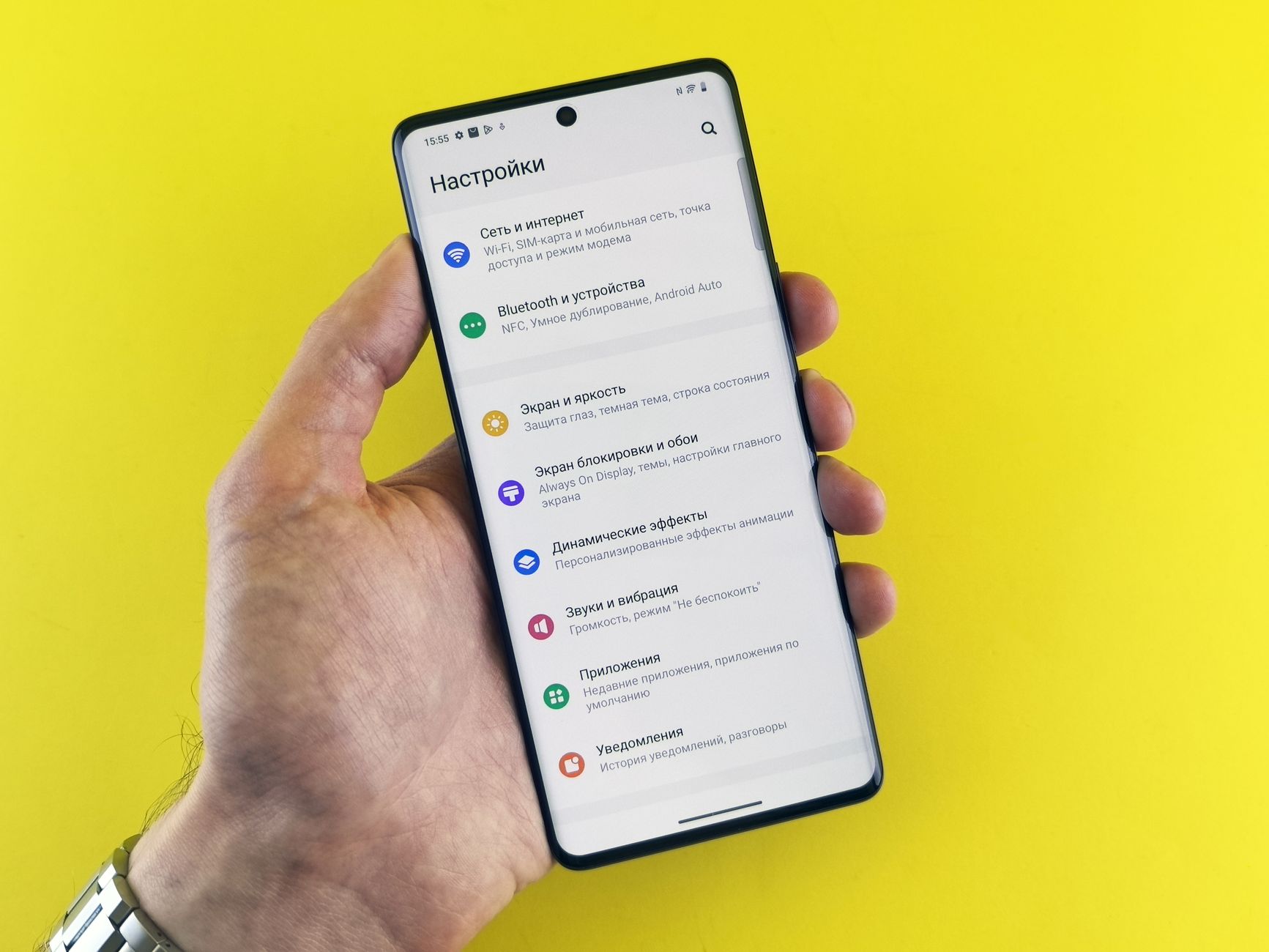
Font size changes only text. Display size changes everything: buttons, icons, and menus. On Android, go to Settings > Accessibility > Display size. Drag the slider to the right. This works like the iPhone Display Zoom. Some phones label this as Screen zoom. On Samsung, open Settings > Display > Screen zoom. Use larger zoom to avoid accidental taps.
Magnification is a built-in tool that zooms into part of the screen. Go to Settings > Accessibility > Magnification. You can choose a triple-tap shortcut or an on-screen button. When you triple-tap the screen, the phone zooms in. Swipe with two fingers to move around. This is useful for reading small print on images, maps, or websites that do not respond to font size changes.
These tools do not require any third-party app. The World Health Organization notes that many assistive features are built into everyday phones. You can use magnification to read a receipt photo or a restaurant menu. It is also helpful for video calls if you need to see who is on screen. If you use Zoom for family calls, our guide on how to use Zoom for beginners shows how to turn on captions and gallery view.
Try triple-tap magnification right now. Open a web page with small text. Triple-tap the screen. The view zooms in. Triple-tap again to zoom back out. This shortcut is easy to trigger by accident, so we will cover how to turn it off in the warnings section if it bothers you.
- Increase text size in Messages, WhatsApp, and email apps.
Some apps ignore the system font size. WhatsApp, for example, has a separate text size option. Open WhatsApp, tap the three dots in the top right, then Settings, then Chats. Tap Font size. You can choose Small, Medium, or Large. This changes only the messages in your chat list and conversations. It does not change the system font.
In Apple’s Messages app, the system text size applies, but you can also use the per-app text size setting on iOS 15 and later. Open Settings > Control Center, add Text Size. Then open Messages, swipe down to open Control Center, tap the Text Size icon, and choose Messages Only. Drag the slider. This lets you set Messages text larger than the rest of the phone.
Email apps often have their own reading settings. In Apple Mail, you can pinch to zoom when reading a message. In Gmail, use the phone’s display settings or pinch zoom. In Outlook, go to Settings > Reading preferences and adjust message font size. The exact menu names vary. The safest route is to type ‘font size’ in the app’s search bar.
If you rely on WhatsApp video calls with family, larger text can help you read names and statuses. Our guide on how to video call on WhatsApp walks through the buttons. After you change the app text size, send a test message to yourself. If the words still look small, check the app’s own accessibility settings under the app’s main menu.
- Adjust browser text size in Safari and Chrome.
When you open a web page, the phone’s font size setting may not apply because websites control their own text. In Safari on iPhone, you can use the Reader View. Tap the AA icon in the address bar. Tap the larger A to increase the text size. Reader View removes ads and clutter. Not all websites support it, but news articles usually do.
In Google Chrome on Android, open the three-dot menu, tap Settings, then Accessibility. You will see a Text scaling slider. Drag it to 120% or 150%. Chrome will adjust the text on most websites. You can also turn on Force enable zoom to allow pinch zoom on sites that block it. This is a hidden gem for people who read news on their phone.
On an iPad, the settings are similar. If you often browse on a tablet, our guide on how to use a tablet covers Safari’s reader view and sidebars. The browser is where many people spend the most time. A 150% text scaling in Chrome makes a huge difference without affecting the rest of the phone.
AARP recommends using built-in reading modes to reduce eye strain. Those reading modes are free and already on your device. Try Safari Reader View on a news article right now. If the text is still too small, use the AA icon to make it larger. You can also pinch to zoom on most websites, but the text may not reflow.

- Use voice assistants to read text aloud when it is still small.
Even with larger text, some long emails or articles are easier to hear than to read. Both iPhone and Android have built-in screen reading. On iPhone, go to Settings > Accessibility > Spoken Content. Turn on Speak Selection. Now when you select text, a Speak button appears. On Android, use Select to Speak under Accessibility. Tap the accessibility shortcut, then tap a block of text to hear it.
Voice assistants can also help you find settings without reading menus. On an iPhone, say ‘Hey Siri, open text size settings.’ On Android, say ‘Hey Google, open font size.’ The assistant will open the right screen. This is useful if the icons are hard to see. Our guide on how to use voice assistants explains how to set up and use Siri and Google Assistant.
Audiobooks and podcasts are another option, but for on-screen text, spoken content is the fastest. If you receive a long text from a family member, select it and tap Speak. The phone reads it aloud. This does not change text size, but it removes the need to squint.
Some users prefer to hear all screen elements. You can turn on VoiceOver on iPhone or TalkBack on Android. These are full screen readers designed for low vision users. They change how you interact with the phone, so try them only if larger text and spoken content are not enough. Both can be turned off in the same Accessibility menu.
- Test your changes and create a cheat sheet for later.
After you adjust the settings, open the apps you use most. Look at a text message, an email, and a web page. If the text is comfortable, you are done. If not, go back and increase the size one notch. The changes are reversible. It is normal to adjust a few times over a week as your eyes adjust.
Write down the paths you used. For iPhone: Settings > Accessibility > Display & Text Size > Larger Text. For Android: Settings > Accessibility > Font size. Keep this note in a paper notebook or in your phone’s notes app. You might need it after a software update resets some settings.
Software updates can change menu names. Apple and Google occasionally move accessibility options. If you cannot find a setting after an update, use the Settings search bar. Type ’text’ or ‘font’. The search shows the right link. This is faster than scrolling through every menu.
Finally, be careful about third-party apps that claim to make text even larger. Some are legitimate, but many ask for permissions they do not need. If you receive a popup or call saying your accessibility settings are broken, it is likely a scam. Read our guide on how to spot a tech support scam to learn the red flags. Then share what you learned with a friend. Larger text helps everyone read with less strain.
Red Flags & Warnings
- 🚨 Avoid third-party apps that request accessibility permissions just to enlarge text. They can read your screen and collect data.
- 🚨 Do not enable magnification if triple-tap interferes with other gestures. It can cause accidental zooms while typing or swiping.
- 🚨 Be careful with Bold Text on iPhone. It requires a restart and may make some thin fonts look odd in certain apps.
- 🚨 Scammers may call claiming to fix your text size settings. Apple and Google never call you. Learn the signs in our guide on how to spot a tech support scam.
- 🚨 Too large text can cut off buttons in banking or rideshare apps. If a button disappears, reduce text size or use Display Zoom instead.
- 🚨 Software updates can reset accessibility settings. Recheck your font size after a major system update.
Frequently Asked Questions
Will increasing text size affect all apps?
Most built-in apps and many popular apps follow the system setting. Some third-party apps do not. In those cases, check the app’s own settings. WhatsApp, Gmail, and Outlook have separate font size or pinch zoom options.
What if I cannot find Accessibility in my Android settings?
Some phone brands put font size under Display instead of Accessibility. Open Settings and use the search bar at the top. Type font size or text size. The search will show the correct menu. Samsung and Google Pixel may differ slightly.
Can I make text bigger only in text messages?
Yes. On iPhone, add Text Size to Control Center and set it to Messages Only. On Android, open Messages, tap the three-dot menu, and look for font size or display settings. WhatsApp also has a chat font size option.
Does increasing text size use more battery?
No. Text size is a software setting. It does not significantly affect battery life. Display brightness and screen timeout have a bigger impact on battery.
Is there a way to make icons and buttons bigger?
Yes. On iPhone, use Display Zoom under Display & Brightness. On Android, use Display size or Screen zoom under Accessibility or Display. This enlarges the entire interface, not just letters.
Can I undo these changes if I don't like them?
Yes. Go back to the same setting and drag the slider back to the left. On iPhone, turn off Larger Accessibility Sizes or set the slider to the middle. On Android, drag the font size slider to the default position. No changes are permanent.
What Should You Remember?
- System settings: On iPhone use Settings > Accessibility > Display & Text Size > Larger Text. On Android use Settings > Accessibility > Font size.
- Display zoom: Turn on Larger Text in Display Zoom for iPhone or Display size on Android to enlarge everything.
- App-specific: WhatsApp, Gmail, and Outlook have their own font size options. Check each app.
- Browser text: Use Safari Reader View or Chrome Text scaling to enlarge web pages.
- Voice reading: Use Speak Selection or Select to Speak to hear small text aloud.
- Stay safe: Never install a third-party app that asks for accessibility access just to make text bigger.
This article is for general informational purposes only and is not medical, financial, or professional advice. Statistics and product details change, so verify current figures with the cited source before acting. Some links may be affiliate links that support this site at no cost to you.