
Talking to your phone or smart speaker may feel strange at first. But voice assistants can save time and reduce frustration. Siri, Alexa, and Google Assistant are the three most common helpers. They can set reminders, make calls, play music, and answer questions. You do not need to type small buttons or search through menus. This guide explains how to use each one safely and confidently.
Voice assistants are built into many devices you may already own. Siri lives on every iPhone and iPad. Google Assistant lives on most Android phones. Alexa lives on Amazon Echo speakers and in the Alexa app. If you are new to smartphones or tablets, read how to set up a new iPhone or how to use a tablet first. That will make the setup steps easier to follow.
According to Pew Research Center, voice assistants have become more common among older adults. That said, many people still avoid them because they worry about privacy or making mistakes. Those concerns are normal. You can start with one simple command and build from there. This article covers setup, daily commands, privacy settings, smart home controls, and troubleshooting.
What You’ll Need
- iPhone or Android phone
- Amazon Echo or Google Nest speaker (optional)
- Wi-Fi connection
How Do You Best Voice Assistants for Beginners?
- Choose your voice assistant and the right device
Voice assistants come built into phones and smart speakers. Siri works on iPhones, iPads, Apple Watches, Macs, and HomePod. Google Assistant works on Android phones, Google Nest speakers, and many smart displays. Alexa works on Amazon Echo speakers, Fire tablets, and some third-party devices. Choosing one often depends on the device you already own. If you have an iPhone, start with Siri. If you use an Android phone, Google Assistant is already there. Amazon Echo devices are popular if you want a dedicated speaker for the kitchen or living room. Check our guide on how to set up a new iPhone or how to set up an Android phone if you need help before adding a voice assistant. All three assistants can set timers, play music, answer questions, and control smart home gadgets. But each has strengths. Siri works best inside Apple apps. Alexa has the largest number of smart home skills. Google Assistant is strong at answering general questions. AARP notes that voice assistants can help older adults with reminders, calls, and hands-free help.

- Turn on and set up your assistant
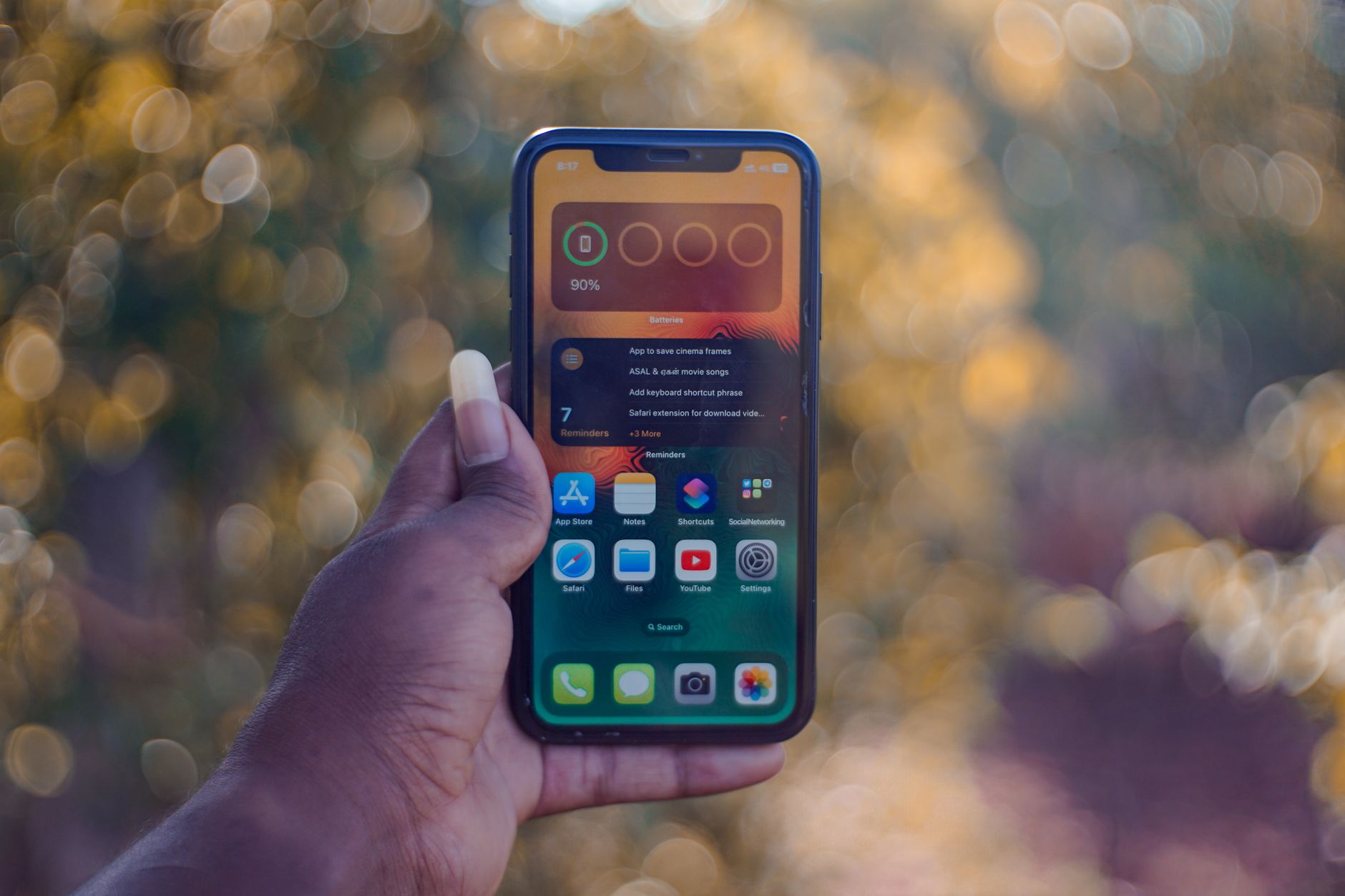
On iPhone or iPad, open Settings, tap Siri & Search, then turn on Listen for ‘Hey Siri’ and Press Side Button for Siri. Follow the on-screen voice training. Apple’s support documentation explains these controls under the Siri settings page. This makes Siri respond to your voice. On Android, open the Google app, tap your profile photo, then go to Settings > Voice > Voice Match. Turn on Hey Google. This lets your phone answer only to your voice. If you have a Google Nest speaker, you can set up Voice Match in the Google Home app. For Alexa, plug in your Echo device. Download the Alexa app from the App Store or Google Play. Sign in with your Amazon account. The app guides you to connect to Wi-Fi and choose a wake word. You can later link music and calling services. Whichever device you use, make sure your phone or speaker is connected to a strong Wi-Fi network. If you need to make text larger before reading settings, see how to increase text size on phone. A strong connection prevents delayed responses.
- Learn the wake word and simple voice commands
Wake words are the phrases that get your assistant’s attention. ‘Hey Siri’ works on Apple devices. ‘Alexa’ works on Amazon Echo speakers. ‘Hey Google’ or ‘OK Google’ works on Android and Google Nest devices. Say the wake word, pause half a second, then speak your request. Start with three simple commands: ‘Set a timer for 10 minutes,’ ‘What’s the weather today?’ and ‘Call the pharmacy.’ These commands work on all three assistants. You can also say ‘Remind me to take my pill at 8 AM’ or ‘Add cereal to my shopping list.’ Some commands need specific wording. For example, on iPhone say ‘Hey Siri, FaceTime my daughter’ to start a video call. For help with video calls, read how to make a FaceTime call or how to video call on WhatsApp. Speak slowly and naturally. You do not need to shout. If the assistant mishears you, say ‘cancel’ and try again.
- Use voice assistants for calls, messages, and reminders
Voice assistants shine when your hands are busy. You can make calls, send text messages, and set reminders without touching your phone. On iPhone, say ‘Hey Siri, call my son’ or ‘Hey Siri, text Martha I’m on my way.’ Siri asks you to confirm the message. With Alexa, you can call other Alexa users or mobile numbers if you enable Alexa Calling in the app. Say ‘Alexa, call home.’ With Google Assistant, say ‘Hey Google, call Dad on speakerphone.’ These hands-free calls help when you cannot reach a phone. Reminders are useful for medication and appointments. Say ‘Hey Siri, remind me every day at 9 AM to take my blood pressure pill.’ Or say ‘Alexa, set a reminder for the doctor appointment Tuesday at 2 PM.’ You can also say ‘Hey Google, remind me to water the plants every Wednesday.’ You can send voice messages through WhatsApp. If WhatsApp is set up, say ‘Hey Siri, send a WhatsApp message to Susan.’ Our guide on how to video call on WhatsApp can help you get started.
- Get information, entertainment, and help around the house
Ask questions: ‘What’s the capital of Canada?’ ‘How many tablespoons in a cup?’ ‘Who won the baseball game last night?’ Google Assistant often gives longer answers and can continue the conversation. Siri and Alexa also answer general knowledge questions. Play music by saying ‘Hey Siri, play Frank Sinatra.’ Or ‘Alexa, play 1960s jazz.’ Or ‘Hey Google, play the news from NPR.’ You may need to link a music service like Apple Music, Spotify, or Amazon Music in the assistant’s settings. Listen to audiobooks or podcasts. On Alexa, you can say ‘Alexa, read my book’ after linking Audible. On Google, say ‘Hey Google, play the latest episode of my podcast.’ If you enjoy reading on a tablet, see how to use a tablet. Some assistants can read the news summary, give a recipe, or set a sleep sound. Say ‘Alexa, play rain sounds at bedtime.’ Try one new entertainment command each week.

- Control smart home devices (optional but handy)
Smart plugs, lights, thermostats, and security cameras can be controlled by voice. First add each device in the maker’s app. Then link that account to Alexa, Google Home, or Apple Home. For Alexa, open the Alexa app, tap Devices, then the plus sign. Choose your device type and follow the steps. For Google, open the Google Home app, tap Add, then Set up device. For Siri, open the Home app on iPhone, tap Add Accessory. Once added, say ‘Alexa, turn off the living room lamp.’ Or ‘Hey Google, set the thermostat to 72 degrees.’ Or ‘Hey Siri, lock the front door.’ These commands reduce the need to bend or reach. Start with one smart plug for a lamp. It builds confidence. When you create accounts for smart home apps, use a strong password. See password safety for seniors. Check the product box for ‘Works with Alexa,’ ‘Works with Google Assistant,’ or ‘Works with Apple Home.’
- Adjust privacy settings and review voice history
Voice assistants are designed to listen for their wake word. But they may record snippets of what you say. You can review and delete those recordings. On iPhone, go to Settings > Siri & Search > Siri & Dictation History. Tap Delete Siri & Dictation History. On Google, visit myactivity.google.com or say ‘Hey Google, delete my last command.’ You can also say ‘Hey Google, delete everything I said today.’ On Alexa, open the Alexa app, go to More > Settings > Alexa Privacy. Review voice history and tap Delete all recordings. You can also turn off the microphone physically. Echo speakers have a microphone mute button on top. Google Nest speakers have a switch on the back. On iPhone, you can press the side button to stop Siri listening temporarily. Be careful about what you say near your device. Never say your Social Security number, banking password, or credit card number out loud. Voice assistants are not perfect at knowing who is speaking. If you get a strange call asking you to say a code to Alexa, hang up. It is a scam. Learn to spot tech support scams.
- Troubleshoot common voice assistant problems
If your assistant does not respond, first check that it is plugged in and connected to Wi-Fi. On a phone, make sure you have an internet connection. Say the wake word again slowly. You may need to move closer to the device. If it answers the wrong person, retrain the voice model. On iPhone, go to Settings > Siri & Search > Listen for ‘Hey Siri’ and turn it off then on to retrain. On Google, go to Google app > Settings > Voice > Voice Match > Retrain. On Alexa, say ‘Alexa, learn my voice’ or go to Alexa app > More > Settings > Your Profile > Voice. If multiple devices answer, change the wake word on Alexa to ‘Echo’ or ‘Computer’ in the Alexa app. On Google, set ‘Hey Google’ sensitivity in the Home app. On Apple, usually only one device responds if signed into the same Apple ID. If music or smart home devices stop working, unlink and relink the service. In the Alexa app, go to More > Settings > Music & Podcasts. In Google Home, tap Settings > Music. In Apple, go to Settings > Music. If your assistant keeps misunderstanding a name, add phonetic pronunciation in your contacts. On iPhone, open Contacts, edit the card, tap add field, then Phonetic first name. Then Siri will understand. For more connection issues, see video call troubleshooting.
Red Flags & Warnings
- 🚨 Never share your passwords, Social Security number, or credit card number with a voice assistant. Anyone nearby can hear.
- 🚨 Turn off voice purchasing on Alexa or Google to avoid accidental orders. In the Alexa app, go to More > Settings > Account Settings > Voice Purchasing.
- 🚨 Review and delete voice recordings monthly. Say ‘Alexa, delete everything I said today’ or use the Google and Siri privacy menus.
- 🚨 Be wary of fake tech support calls that ask you to say a code to your smart speaker. Hang up. Learn how to spot tech support scams.
- 🚨 Disable the microphone when you are having private conversations. Use the mute button on smart speakers or turn off ‘Hey Siri’ in Settings.
- 🚨 Only enable smart home skills from brands you trust. Some third-party Alexa skills and Google actions collect personal data. Check reviews and permissions.
Frequently Asked Questions
Do I need a smart speaker to use a voice assistant?
No. Siri works on iPhone or iPad, Google Assistant works on Android phones, and Alexa works in the Alexa app on smartphones. A smart speaker adds hands-free use in a room, but it is optional.
Is Siri only on Apple devices?
Yes. Siri is built into iPhone, iPad, Mac, Apple Watch, Apple TV, and HomePod. You cannot use Siri on an Android phone or a Windows PC.
Can Alexa call 911?
In most cases, no. Alexa can call mobile numbers and other Alexa users, but 911 support is limited or requires a separate service. Keep a landline or mobile phone for emergencies.
How do I stop my assistant from listening?
Press the microphone mute button on Echo or Google Nest speakers. On iPhone, go to Settings then Siri & Search and turn off Listen for ‘Hey Siri.’ You can also delete voice history in the privacy menu.
Can voice assistants understand seniors with slow or soft speech?
Usually yes. You can speak naturally and pause between wake word and command. Some assistants let you adjust speech rate. If recognition is poor, retrain the voice model.
Are voice assistants safe for banking?
No. You should not say account numbers or passwords aloud. Use banking apps with Face ID or a password manager instead. The TechGently online banking safety guide has more details.
What Should You Remember?
- Start with one assistant: Pick Siri on iPhone, Google Assistant on Android, or Alexa on an Echo speaker.
- Use simple commands: Say ‘Set a timer for 10 minutes’ to build confidence.
- Adjust settings: Turn on ‘Hey Siri’ or ‘Hey Google’ under your device settings.
- Review privacy: Delete voice history and use the microphone mute button regularly.
- Avoid oversharing: Never say passwords, Social Security numbers, or card numbers aloud.
- Add smart home slowly: Start with one smart plug before buying more devices.
This article is for general informational purposes only and is not medical, financial, or professional advice. Statistics and product details change, so verify current figures with the cited source before acting. Some links may be affiliate links that support this site at no cost to you.