Social media helps you stay connected with family, friends, and community groups. It is also a place where scammers and strangers can learn a lot about you. If you are new to Facebook, Instagram, or other apps, it is easy to share too much by accident. A few simple privacy changes can protect you without making social media hard to use. Start with password safety for seniors to keep your accounts locked down. Then follow the specific social media tips below.
Many beginners assume that only friends can see what they post. That is not always true. Facebook and Instagram often default to public sharing. That means anyone online can see your photos, your birthday, and your comments. This default setting surprises many people. Pew Research Center reports that about seven in ten Americans use social media. That is a huge audience, and you do not want all of it looking at your personal life.
Scammers also know that older adults are active on social media. The FTC says more than one in four people who reported losing money to fraud in 2021 said it started on social media. That is a scary number, but you can lower your risk. This guide walks you through privacy checkups, app settings, and scam red flags in plain English. You do not need any technical background to follow along.
You do not need to be a computer expert. Most privacy settings take only five or ten minutes. Once you set them, they stay set. A little time now can save you from identity theft, hacked accounts, and embarrassing over-sharing. The steps below are written in plain English, with exact menu names. Some steps are for Facebook, some for Instagram, and some for your phone. By the end, you will have a safer social media experience without giving up the fun. Let us get started with the first step.
What You’ll Need
- A smartphone or computer with internet access
- Your social media account passwords
- Access to Settings or Privacy menus on your device
How Do You Best Social Media Privacy Tips for Beginners and Seniors?
- Create strong, unique passwords and turn on two-factor authentication
Every social media account starts with a password. If you use the same password on Facebook, email, and online banking, one leak can open all doors. Make each password at least 12 characters. A phrase like ‘BlueDogHouse2024!’ is easier to remember than a random string. Change any password you have used on more than one site.
Two-factor authentication, also called 2FA, adds a second lock. After you type your password, the app asks for a code sent to your phone. Even if someone steals your password, they cannot get in without that code. On Facebook, tap Settings & privacy, then Settings, then Password and security. On Instagram, tap Settings, then Security, then Two-Factor Authentication.
If remembering many passwords feels hard, use a password manager. iPhones have iCloud Keychain built in. Go to Settings, then Passwords to turn it on. On Android, Google Password Manager offers the same help. These tools create and store strong passwords for you.
- Run Facebook’s Privacy Checkup and limit your audience
Facebook has a built-in tool called Privacy Checkup. It walks you through who can see your posts, your profile, and your personal info. To find it, click your profile picture in the top right. Choose Settings & privacy, then Privacy Checkup. The tool shows you a list of quick fixes.
In the first section, ‘Who can see what you share’, set your future posts to Friends. That means only people you have approved can see what you post. For past posts, use the ‘Limit past posts’ button. This changes old public posts to friends only with one click.
Next, check your profile information. Things like your phone number, email, and birthday can be visible to everyone if you do not change them. Set your birthday to Only Me or Friends. Remove your phone number if you do not want strangers to call or text. Keep your profile picture on Friends.
- Make Instagram and other profiles private
Instagram is a photo and video app owned by the same company as Facebook. New Instagram accounts are public by default. That means anyone can see your photos and videos. To change this on your phone, tap your profile picture at the bottom right. Then tap the three lines at the top right. Choose Settings and privacy, then Account privacy. Turn on Private account.
A private account means only people you approve can follow you and see your posts. If a stranger wants to follow you, they must send a request. You can ignore or decline it. This one switch fixes most privacy problems for personal users.
Other apps work the same way. On X, formerly Twitter, go to Settings and privacy, then Privacy and safety, then Audience and tagging. Check Protect your posts. On TikTok, go to Settings and privacy, then Privacy, then Private account. Always choose private for personal sharing.
- Review app permissions and location sharing on your phone
Social media apps often ask for access to your camera, microphone, contacts, and location. Some access is needed, like camera access for taking a photo. But many apps collect more than they need. On an iPhone, go to Settings, then Privacy & Security. Tap each category, like Location Services or Contacts. You will see a list of apps and what they can access.
On an Android phone, open Settings, then Privacy, then Permission manager. Tap a permission, such as Location or Microphone. Then tap the social media app and choose Allow only while using the app or Don’t allow. For location, choose Ask every time or Don’t allow unless you really need check-ins.
It is smart to turn off precise location. On iPhone, go to Settings, then Privacy & Security, then Location Services, then Facebook or Instagram. Switch off Precise Location. On Android, Permission manager, then Location, then Facebook. Turn off Use precise location. This means the app knows your general area, not your exact street. For new phone setup steps, see how to set up a new iPhone or how to set up an Android phone.
- Spot social media scams before you click
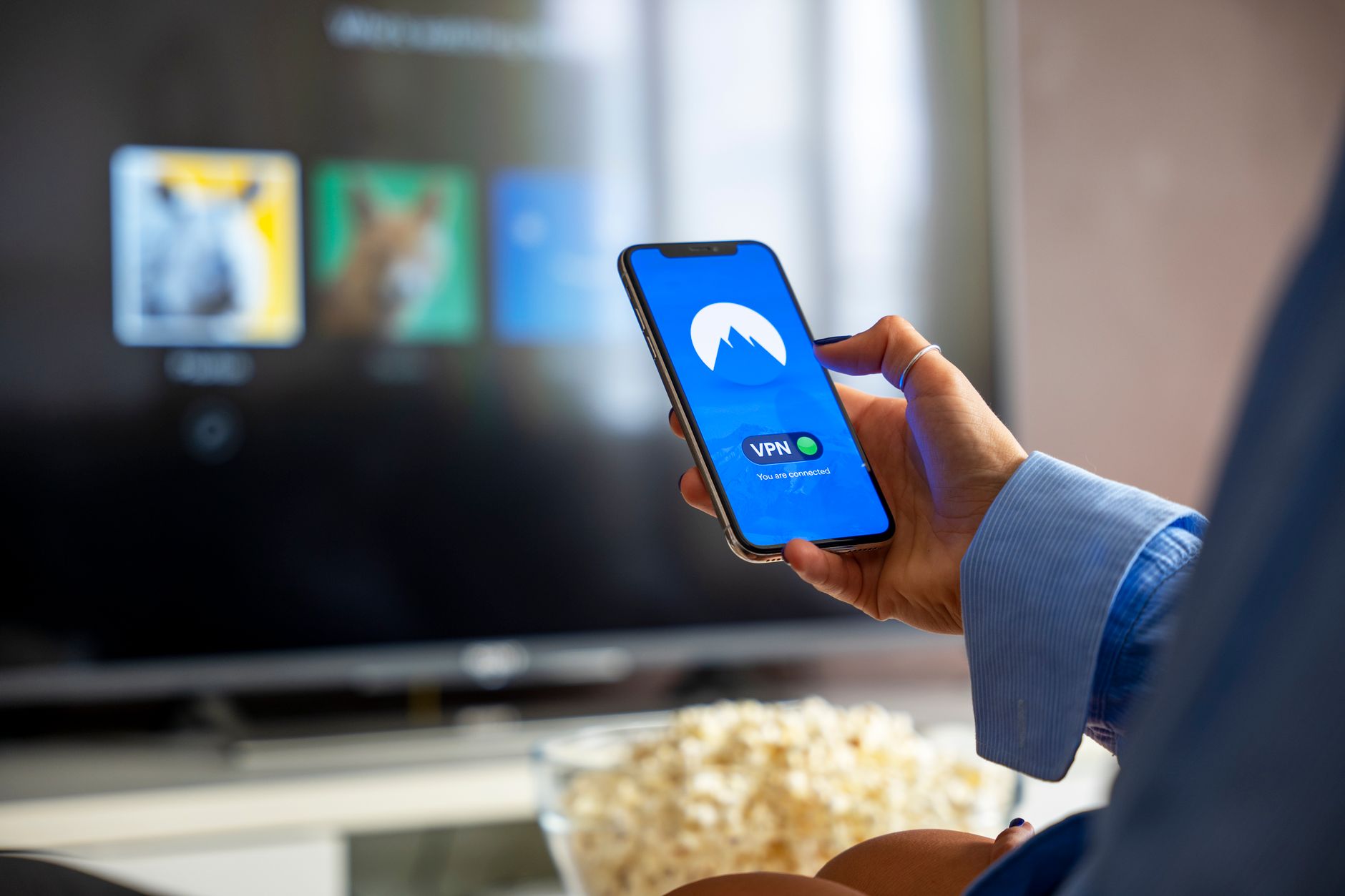
Scammers use social media because it is free and reaches millions. They post fake giveaways, urgent warnings, and too-good-to-be-true offers. They might send you a direct message saying your account will be deleted unless you click a link. Stop and think before you click anything.
A common trick is the friend in trouble scam. Someone who looks like your friend sends a message asking for money or a gift card. Call your friend on the phone to check before sending anything. Scammers can copy photos and names. Another red flag is any message that says you won a prize but must pay a fee first.
Quizzes and personality tests are also risky. They ask for your birth date, pet’s name, or favorite color. Those are often answers to security questions. The quiz creator can use your answers to break into your accounts. Skip quizzes that ask for personal details. For more, read our guide on how to avoid phishing emails and how to spot a tech support scam.
Remember, real companies never ask for your password or verification code. If a message feels urgent, stop. Contact the company another way. A quick search for the official help page is safer than clicking the link in the message.
- Use friend lists and limit what strangers can see
Friend lists let you share with a smaller group. On Facebook, you can create a list called Close Family. When you post, choose that list instead of Friends. Only people on the list see the post. To create a list, go to Friends, then Custom Lists, then Create List.
This is useful for photos of grandchildren or home projects. You may want your cousin to see them, but not every old coworker. On Instagram, you can use Close Friends for Stories. Tap your profile, then the three lines, then Close Friends. Add the people you trust most.
Also review your friend list. If you do not know someone in real life, remove them. A smaller, trusted circle is safer. You can still be polite. You do not have to accept every request.
- Clean up old posts and remove third-party apps
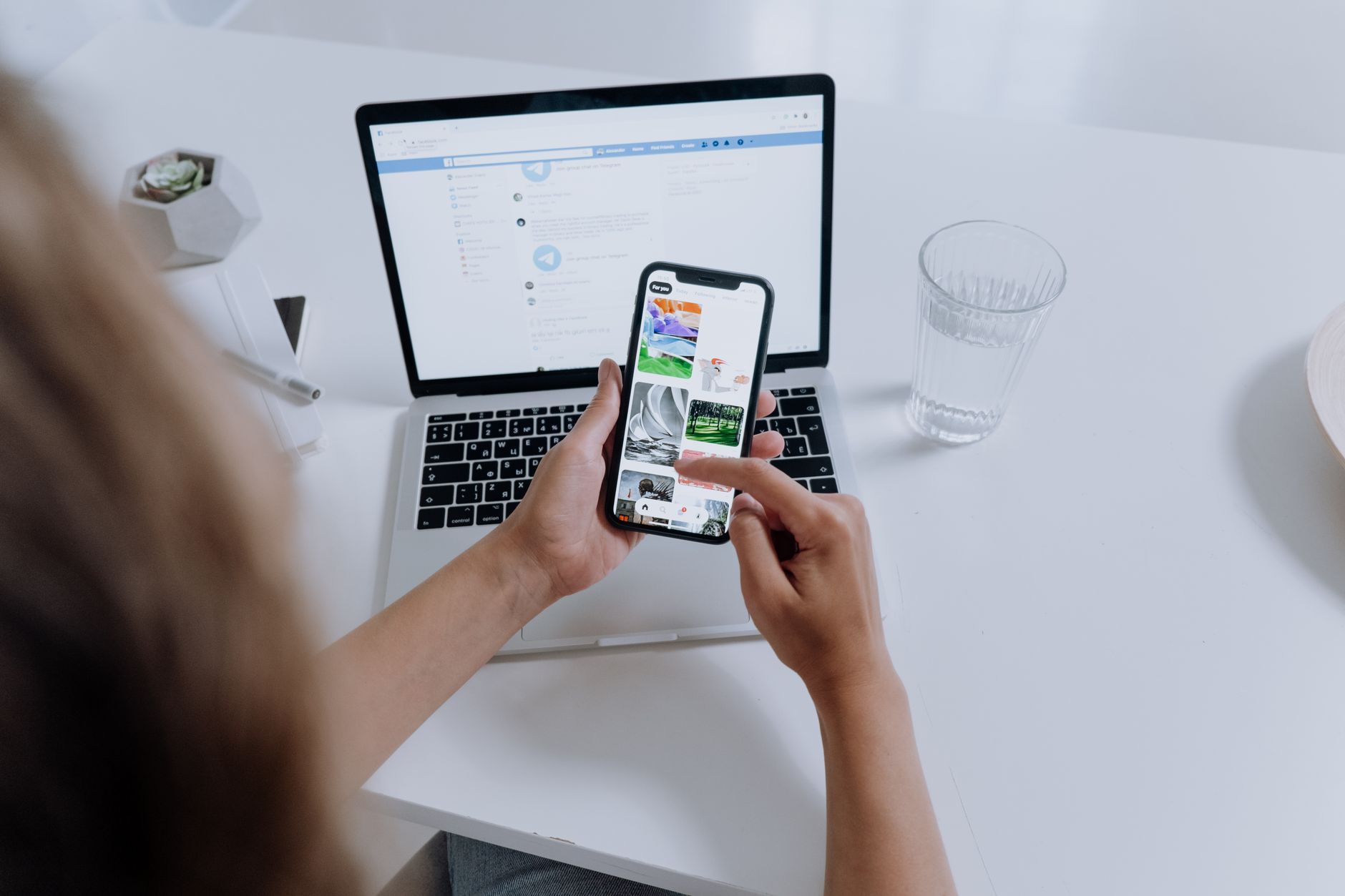
Over the years, you may have posted things you no longer want public. Go through your timeline and delete anything with too much detail: your phone number, address, vacation dates, or photos of your home’s front door. On Facebook, click your profile, then Manage posts. You can hide or delete posts one by one.
You should also remove apps and websites that have access to your Facebook or Google account. These are called third-party apps. Years ago, you may have logged into a game or quiz with Facebook. That app can still see your name and friends list. On Facebook, go to Settings & privacy, then Settings, then Apps and websites. Remove anything you do not recognize.
On Google, go to your Google Account, then Security, then Third-party apps with account access. Remove anything old. This is the same idea as cleaning out your wallet. If you do not use it, cut it off.
- Use messaging and video calls safely
Social media often leads to private messaging and video calls. Scammers may ask you to move a conversation to WhatsApp or Zoom to avoid the platform’s security. Be wary if someone you just met wants to talk privately. Stick to the platform where you first met them until you know who they are.
When you do use video calls, use trusted apps. For family calls, FaceTime on iPhone is built in and encrypted. On Android, WhatsApp video calls are also encrypted. If you need to join a meeting or class, our guide on how to use Zoom for beginners can help you sign in safely.
Do not share meeting links publicly. If a stranger sends you a Zoom link, check the source before clicking. A real friend or family member will not mind if you ask for the link another way. Keep the same caution you use for emails and phone calls.
Red Flags & Warnings
- 🚨 Never share your home address, phone number, or exact location in public posts. Even a photo of your house can reveal enough for a scammer to find you.
- 🚨 Do not accept friend requests from people you do not know. Scammers create fake profiles using stolen photos.
- 🚨 Quizzes and ‘who viewed your profile’ apps are often data collectors. They may harvest your answers to break into accounts.
- 🚨 Never send a verification code to someone else. A real company will never ask for it.
- 🚨 Be cautious with urgent messages that ask for money or gift cards. Call the person using a known number before acting.
- 🚨 Check your privacy settings every few months. Apps sometimes update and reset permissions.
Frequently Asked Questions
How do I make my Facebook account completely private?
Run the Facebook Privacy Checkup. Set future posts to Friends and use Limit Past Posts. Remove your phone number and set your birthday to Only Me. Then set your profile picture and cover photo to Friends.
Is it safe to use social media if I am a senior?
Yes, with the right settings. Use strong passwords, two-factor authentication, and private profiles. Avoid accepting strangers and skip quizzes. These steps dramatically reduce your risk.
What should I do if my account gets hacked?
Change your password immediately. Turn on two-factor authentication if it is not already on. Check for unknown apps in your account settings and remove them. Notify friends that your account sent spam. You can also report the hack to the platform.
Can I see who has looked at my Facebook profile?
No, Facebook does not let you see who views your profile. Any app that claims to do this is a scam. Avoid downloading such apps.
How often should I review my privacy settings?
Review them every three to six months. Also check after any major app update. Set a reminder on your phone or calendar.
What information should I never post on social media?
Never post your full birth date, home address, phone number, bank details, or travel plans. Also avoid posting photos of your driver’s license, passport, or boarding passes.
What Should You Remember?
- Strong passwords are your first line of defense. Use different ones for each account and turn on two-factor authentication.
- Private accounts limit strangers. Switch Facebook, Instagram, and TikTok profiles to friends only.
- Location sharing should be off or set to approximate. Do not give apps your precise location.
- Friend requests from strangers are a red flag. Decline or ignore them.
- Quizzes and polls often collect security answers. Skip them.
- Regular privacy checkups catch settings that drifted. Do one every few months.
This article is for general informational purposes only and is not medical, financial, or professional advice. Statistics and product details change, so verify current figures with the cited source before acting. Some links may be affiliate links that support this site at no cost to you.