More older adults manage money online than ever before. Online banking saves trips to the branch. It also lets you check balances at midnight or pay bills from your couch. But the same convenience attracts criminals. They send fake emails, fake texts, and even fake phone calls. You can avoid most of these traps with a few simple habits. If you are new to smartphones, start with your phone’s basic setup guide, then come back to secure your bank account. This guide explains each step in plain English.
Pew Research Center reports that 75 percent of adults age 65 and older now use the internet. That is a huge jump from just 14 percent in 2000. More seniors also carry smartphones. This means banking apps are easier to reach. Still, convenience should never lower your guard. AARP research finds that many adults over 50 want simple security tools, not jargon. You do not need to be a tech wizard. You need a password, a phone for codes, and a watchful eye. Start by understanding what your bank already offers. Then build layers of protection one by one.
The biggest risk is not the bank’s website. It is the fake version of the bank. Criminals copy logos and email templates. They send messages that look urgent. They want you to click a link and type your password. Once they have it, they can empty your account. This guide shows you how to recognize those tricks. It also shows you what to do if you already clicked. For a strong start, review password safety for seniors before you create your bank login.
By the end of this guide, you will know how to choose a bank, set up your account, use a mobile app, and spot common scams. You will also know how to report fraud if anything looks wrong. Take it one step at a time. A safe banking routine takes about 20 minutes to set up. After that, it takes five minutes a week to monitor. That small time investment protects your savings and your peace of mind.
What You’ll Need
- A computer, smartphone, or tablet with a secure home Wi-Fi connection
- Your bank account number and debit card
- A working email address and phone number
- A notebook or password manager to store unique passwords
How Do You Best Online Banking Safety Guide for Seniors and Beginners?
- Choose a bank with strong online security.
Start with your current bank. Look at their website. The address should begin with https and show a padlock icon. That padlock means the data you send is scrambled. If your bank does not use https, choose a different bank. Most major banks do. You can also call your bank and ask about their fraud protection. Ask if they offer two factor authentication. Ask if they can freeze your card from the app. A good bank will explain these without rushing you.
Next, look for account alerts. Most banks let you set text or email alerts for withdrawals over a certain amount. You want an alert for any transfer above 100 dollars. This is a simple tripwire. If a thief tries to take a large sum, you get a text right away. That gives you time to call the bank and stop the transfer. AARP research shows that many adults over 50 prefer banks with clear mobile tools, so more banks are building them.
Avoid logging into your bank from public Wi-Fi. Coffee shop networks are not private. A criminal sitting nearby can sometimes watch what you type. Use your home password protected Wi-Fi or your phone’s cellular data. Cellular data is generally safer than public Wi-Fi. If you are setting up a new phone for banking, how to set up an Android phone can help you get the basics right.
Finally, choose a bank that offers a card lock feature. This lets you turn off your debit or credit card instantly from the app. If you misplace your wallet, you can lock the card before anyone uses it. That small feature can prevent a lot of damage. Write down the bank’s official phone number from the back of your card and keep it somewhere safe. Do not store it only on the phone you might lose.
- Set up your online account on your own device.
Use your own computer, tablet, or phone to open the account. Do not use a shared computer at a library or hotel. You cannot be sure that machine is clean. A shared computer might have a keylogger that records every key you press. If you need help with email setup before you start, how to set up email walks you through it. You will need a working email address for password resets.
Go to the bank’s website by typing the address into the browser yourself. Do not click a link in an email that claims to be from the bank. That is a common trick. The real site will look clean and will never ask for your PIN or full Social Security number on the first page. If anything feels off, close the browser and call the bank.
Create a username that is easy to remember but hard to guess. Avoid your full name and birth year. Then create a password with at least 12 characters. Mix uppercase letters, lowercase letters, numbers, and symbols. Better yet, use a passphrase like BlueRiver$Chair2024!. Do not use that exact one. Do not use your pet’s name, your grandchild’s name, or 123456. If a crook finds those details on social media, they can guess them.
Set security questions carefully. The answers should not be things people can find online. For example, your mother’s maiden name is often public. You can choose a pretend answer instead. Write it down in a locked notebook or a password manager. Do not save the answers in a notes app on an unlocked phone.
- Create a strong password and turn on two-factor authentication.
Your password is the first lock. Make it at least 12 characters. A passphrase of four or five random words is easier to remember than a jumble. For example, correct horse battery staple is weak because it is common, but a unique phrase like MapleTeaBrick$Sunset! works better. Do not reuse the same password for email, social media, and banking. If one account leaks, the others stay safe. Write the password in a locked notebook or use a password manager.
Turn on two-factor authentication, also called 2FA or multifactor authentication. This means the bank texts a one-time code after you type your password. You then enter that code. A thief who steals your password still cannot get in without your phone. Many banks also offer an authenticator app for codes. That app changes the code every 30 seconds. Either option is much safer than a password alone.
Do not share the code with anyone. A real bank employee will never call and ask for the code. Scammers do. They may say they need it to stop fraud. Hang up and call your bank yourself. The FTC reports that consumers lost 10 billion dollars to fraud in 2023, and account takeovers often start with a stolen password and a shared code. This data point is a reminder that layers matter.
- Use your bank’s official mobile app safely.
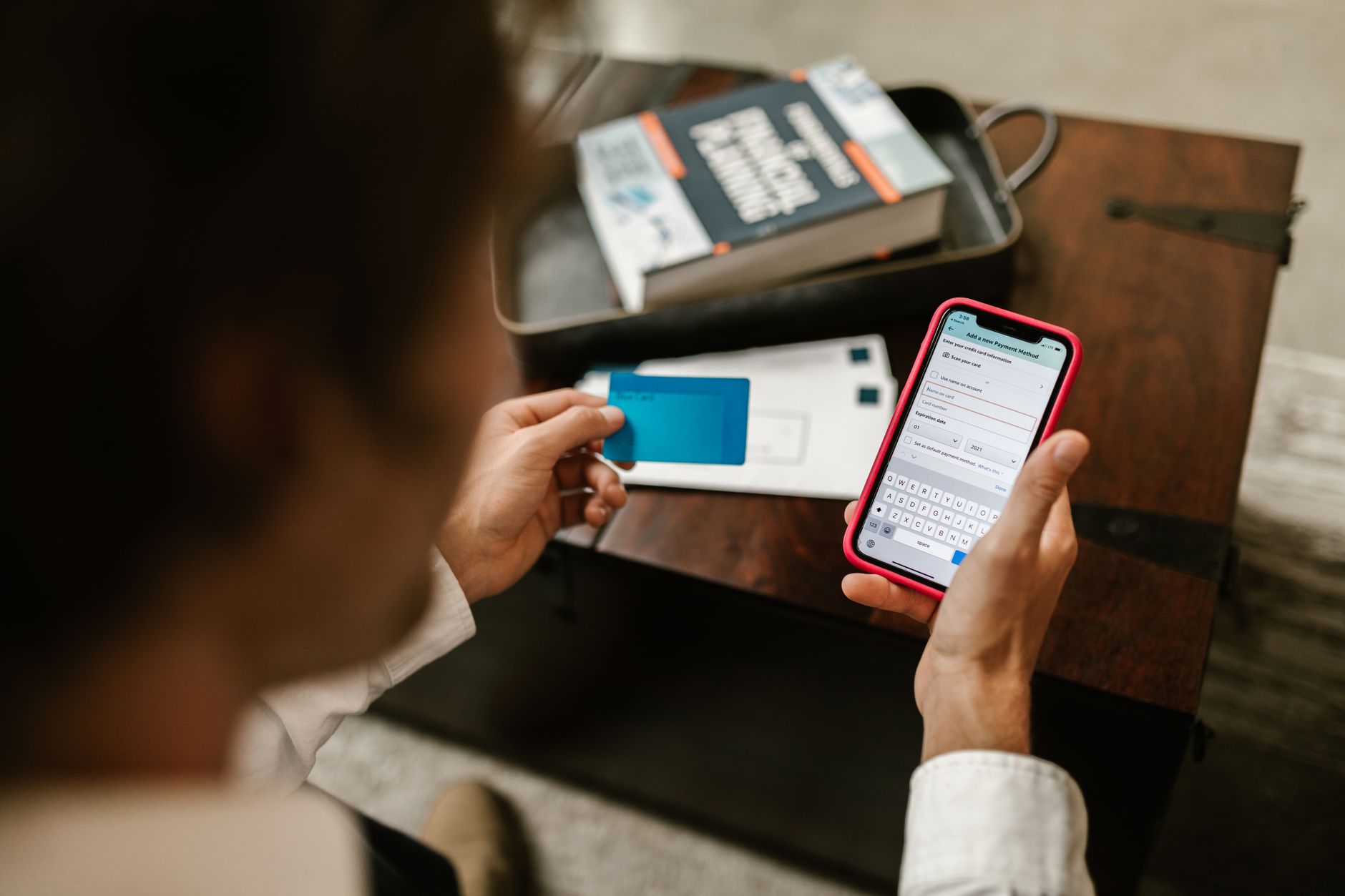
Download the app only from the Apple App Store or Google Play. Type your bank’s exact name into the store search. Check the developer name under the app title. It should match your bank’s official name, not a random company. Fake banking apps do exist. They look real but steal your login. If you are using an iPhone and need help with the App Store, how to set up a new iPhone covers the basics.
Set up face ID or fingerprint unlock in the app. This is faster than typing a password and harder to copy. Apple’s official iPhone User Guide explains how to set up Face ID and require attention before unlocking. Google’s Android Help Center has similar steps for fingerprint unlock on Android phones. Use one of these if your phone supports it. Always keep a backup passcode in case your face or finger scan fails.
Keep your phone’s operating system up to date. Updates fix security holes. Do not ignore them. Most phones can update automatically. Turn on automatic updates if you can. Also set your phone to lock after one or two minutes of idle time. If you set the phone down and walk away, the lock keeps your bank app closed.
Avoid using mobile banking on public Wi-Fi. Use your phone’s cellular data when you are out. At home, use your own password protected network. Log out of the bank app when you are finished if you share the phone with anyone. Most apps log out automatically after a few minutes, but do it yourself for extra safety.
- Spot phishing emails and fake text messages.
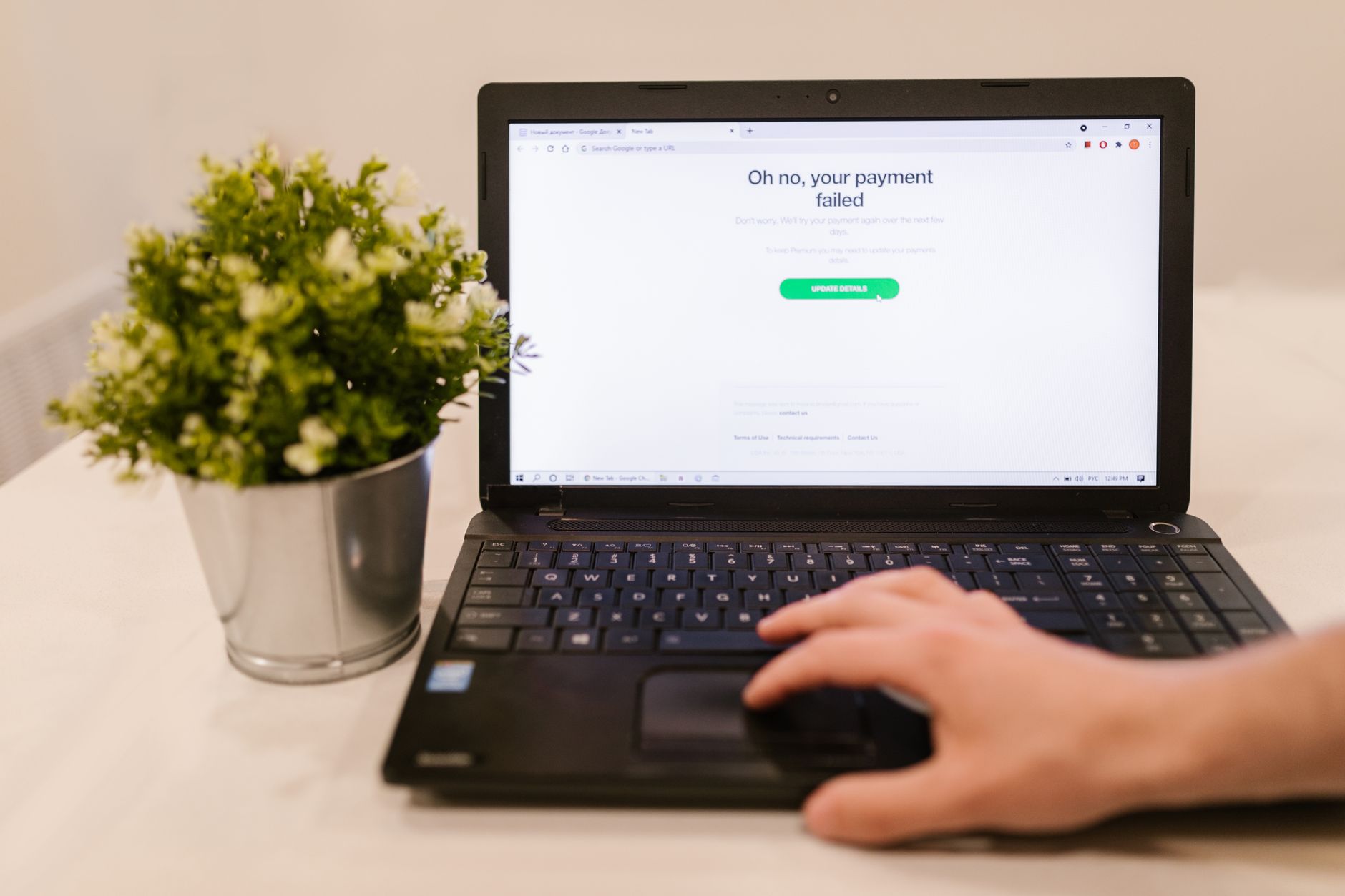
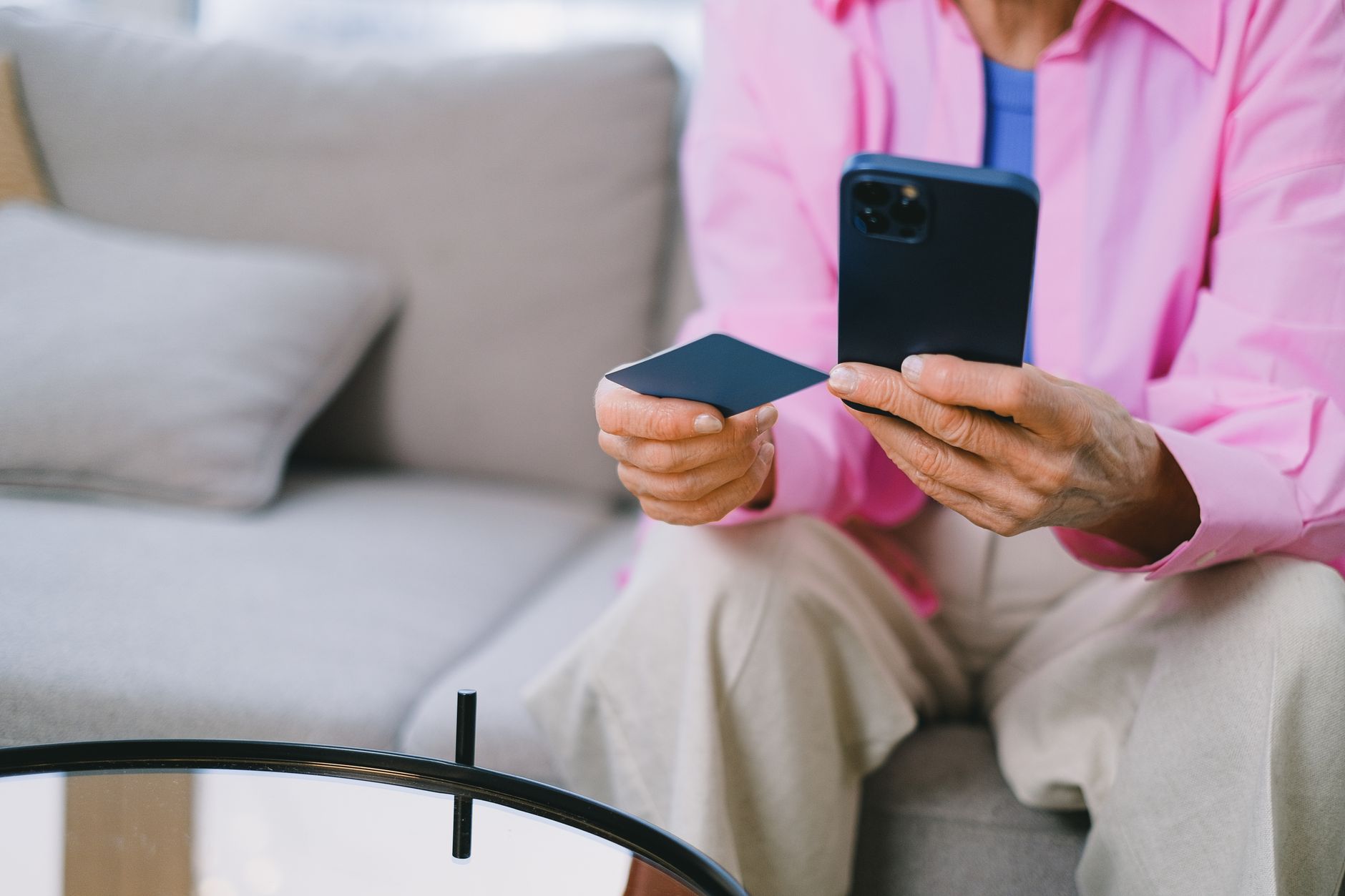
Criminals send emails that look like they come from your bank. The logo looks right. The wording is polite. It may say your account has been locked or you need to verify a payment. Do not click the link. Banks do not ask you to confirm your password by email. If you are unsure, open your browser and type the bank’s address yourself. Then log in and check for alerts.
Look at the sender’s email address. A real bank uses a short address with the bank’s name. A scammer might use something like [email protected]. Small differences matter. Hover over the link with your mouse to see where it goes. On a phone, press and hold the link to preview it. The preview should show your bank’s real domain, not a long string with extra words.
Text message scams work the same way. They may say a charge was attempted and you should call a number. Do not call the number in the text. Use the number on the back of your debit card. Do not tap links in texts. If you want to report a phishing email, forward it to your bank and to the FTC at FTC.gov. The FTC has a fraud reporting page that takes just a few minutes.
For a full list of red flags, read how to avoid phishing emails. It explains how to check links and what to do if you already clicked. If you get a phone call instead of an email, the same rule applies. Hang up and call your bank yourself.
- Monitor your accounts every week.
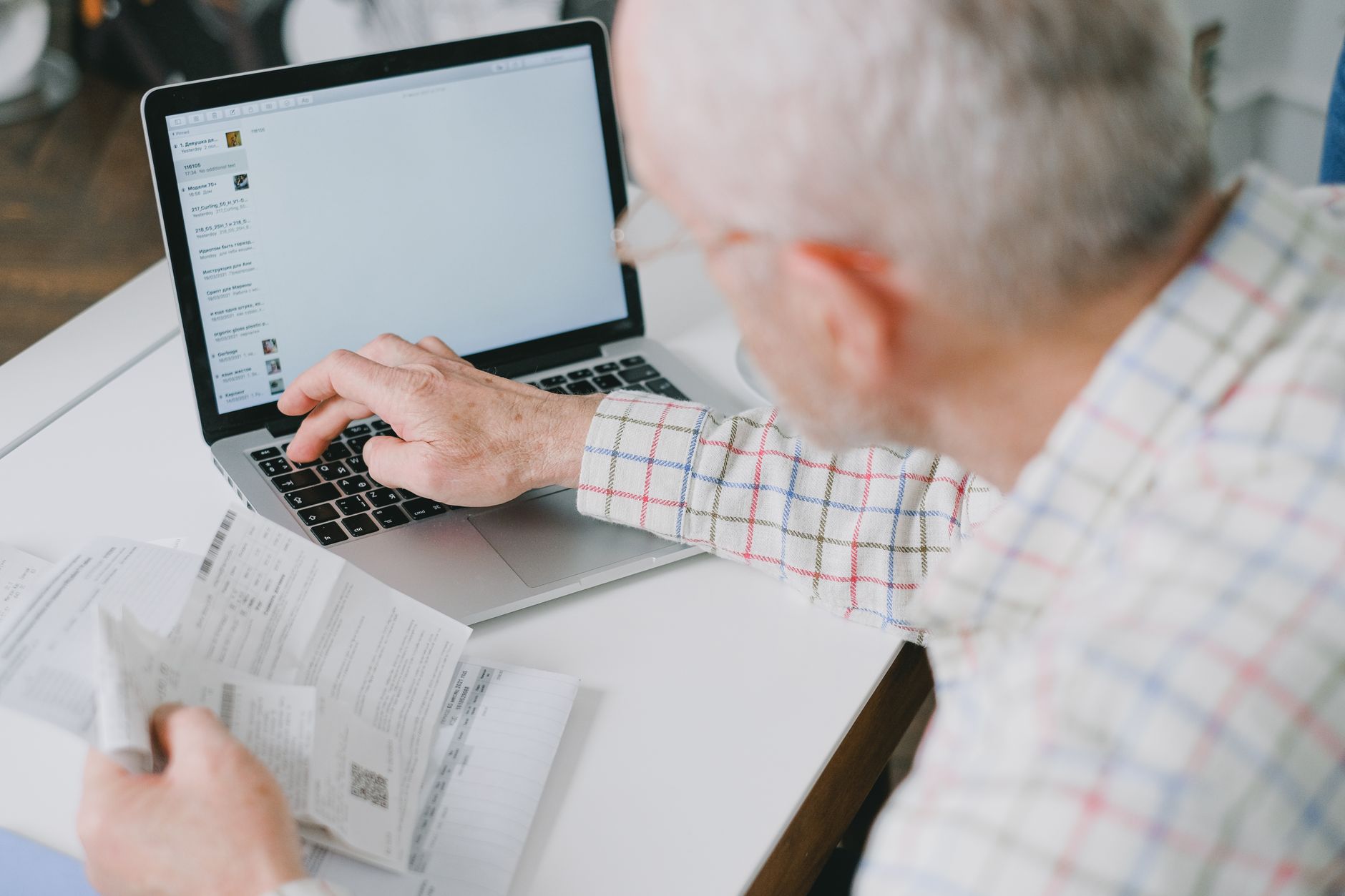
Log into your online banking once a week. Look at the last 10 transactions. Do you remember each one? If you see a charge for a dollar or two that you do not recognize, report it. Thieves often test a card with a tiny charge before making a big purchase. Catching it early stops the big charge.
Set up account alerts. Most banks let you choose text or email alerts for any transaction over a set amount. Pick 100 dollars or 200 dollars. You can also turn on alerts for every debit card purchase if you want more control. The alerts arrive in seconds. That means you will know about a suspicious charge before it clears.
Review your monthly statement carefully. Look at the payee names. Some scammers use names that look similar to real stores. If something is off, call your bank within 60 days. Under federal law, you have protections for unauthorized electronic transfers, but you must report promptly. The sooner you act, the less liable you are.
If you keep receipts, compare them to the list. You can store paper receipts in a folder or take photos of them. Keeping a simple log helps you remember what you bought. This takes five minutes a week and gives you peace of mind.
- Know what to do if you suspect fraud.
If you see a charge you do not recognize, call your bank immediately. Use the number on the back of your card. Do not use a phone number from Google search results. Scammers pay for fake bank phone numbers to appear at the top of search ads. Call the bank from your own saved contact or the card in your wallet.
Ask the bank to freeze your card and open a fraud claim. Change your online banking password from a safe device, not the one that might be infected. Turn on two-factor authentication if you have not already. Watch your account for small test charges while the claim is open.
Report identity theft to the FTC at ftc.gov/complaint. You can also call 1-877-FTC-HELP. The FTC will give you a personal recovery plan. If you shared your Social Security number, contact the three credit bureaus to place a free fraud alert. This makes it harder for someone to open new credit in your name.
Keep a log of every call and letter. Write down the date, the person you spoke to, and what they said. This helps if the fraud gets complicated. Do not pay anyone who calls promising to recover your money for a fee. That is a recovery scam. Read how to spot a tech support scam to recognize those fake helpers.
Red Flags & Warnings
- 🚨 Never share a one-time passcode. No bank employee will ask you for the code sent to your phone.
- 🚨 Do not click links in emails or texts that claim to be from your bank. Type the bank’s web address yourself.
- 🚨 Avoid banking on public Wi-Fi. Coffee shop networks can be watched by thieves.
- 🚨 A real bank will never ask you to move money to a safe account or buy gift cards.
- 🚨 Watch for tiny test charges. Fraudsters often try a $1 charge before draining an account.
- 🚨 If you get a call saying your account is locked, hang up and call your bank using the number on your card.
Frequently Asked Questions
Is online banking safe for seniors?
Yes, online banking is safe when you follow basic security habits. Use a strong unique password, turn on two-factor authentication, and only log in through the bank’s official app or website. Avoid public Wi-Fi and never click links in emails or texts that claim to be from your bank.
What is the safest way to log into online banking?
Use the bank’s official mobile app or type the bank’s web address directly into your browser. Turn on face ID or fingerprint unlock if your phone supports it. Then enter your password and the one-time code the bank sends to your phone. This layered approach stops most thieves.
How do I know a bank website is real?
Look at the address bar. The web address should start with https and show a small padlock icon. Check that the bank’s name is spelled correctly in the address. Avoid sites reached by clicking a link in an email. When in doubt, type the address yourself or call your bank.
What should I do if I click a phishing link?
Do not enter your password. Close the browser tab right away. Then open your bank’s official website or app and change your password immediately. Call the phone number on the back of your card to tell the bank. Watch your account closely for the next few weeks and report any suspicious charges.
Can I use my tablet for online banking?
Yes, a tablet can work well because the screen is larger and easier to read. Use the bank’s official app from the Apple App Store or Google Play. Do not use a shared tablet at a library or store. Set a screen lock and follow the same password and two-factor rules you would on a phone.
How often should I check my bank statements?
Check your online account at least once a week. Look at the last ten transactions and compare them to your receipts. Review your full monthly statement as soon as it arrives. The sooner you report a fraudulent charge, the better your chances of getting your money back.
What Should You Remember?
- Strong password: Use at least 12 characters and never reuse it for email or social media.
- Two-factor authentication: Always turn on text or app codes for an extra lock.
- Official app only: Download your bank’s app from the Apple App Store or Google Play.
- Spot the hook: Do not click links in emails or texts. Type the bank’s address yourself.
- Check weekly: Review transactions at least once a week and set alerts over $100.
- Report fast: Call your bank right away if you see a suspicious charge.
This article is for general informational purposes only and is not medical, financial, or professional advice. Statistics and product details change, so verify current figures with the cited source before acting. Some links may be affiliate links that support this site at no cost to you.