Many seniors and beginners rely on a smartphone for internet access, but sometimes a laptop or tablet needs a connection too. Tethering turns your phone into a portable internet source. Bluetooth tethering is one way to do it. It uses Bluetooth wireless technology instead of a cable. This guide explains how it works and how it compares to other methods.
Not all tethering methods are the same. Wi-Fi hotspot is often fastest, but it drains the battery quickly. USB tethering is reliable but needs a cable. Bluetooth tethering sits in the middle. It uses very little battery and no cable, but speeds are slower. According to a Pew Research Center study, 61% of adults aged 65 and older own a smartphone. That means many seniors already have the tool they need for tethering.
Before you start, check your cellular plan. Some carriers charge extra for tethering or limit how much data you can share. Apple’s support page for Personal Hotspot explains that tethering uses your cellular data allowance. Google’s Android help page has similar steps for sharing a connection. If you have a limited plan, monitor your usage so you do not go over.
This article compares three ways to share your phone’s internet: Bluetooth tethering, USB tethering, and Wi-Fi hotspot. We describe exactly what to tap on iPhone and Android, and we list pros and cons for each. If you need help setting up your phone first, read our iPhone setup guide or Android setup guide. You may also want to increase text size to make settings easier to see.
How Do the Top Options Compare?
| Method | Best For | Speed | Battery Use | Security | Setup Difficulty |
|---|---|---|---|---|---|
| Bluetooth Tethering | Light browsing and email | Slow (up to 1-3 Mbps) | Very low | Good, but use a passcode | Easy on iPhone, slightly more steps on Android |
| USB Tethering | Reliable connection for laptops | Fast (same as phone data) | Charges phone while in use | Very secure, physical connection | Plug in cable and tap one setting |
| Wi-Fi Hotspot | Multiple devices and streaming | Fastest (same as phone data) | High, drains battery quickly | Secure if you set a strong password | Easy, turn on Personal Hotspot |
Speeds depend on your carrier and signal strength. Bluetooth tethering is often limited to 1-3 Mbps, while USB and Wi-Fi can reach your phone’s full data speed. Battery use estimates are general. Wi-Fi hotspot can drain a battery in a few hours.
1. Bluetooth Tethering , Best for low-data tasks and long battery life
To set up on iPhone: Open Settings, tap Bluetooth, turn it on. Then tap Personal Hotspot, turn on Allow Others to Join. On the other device, pair via Bluetooth and select the phone as a network. On Android: Open Settings, tap Network & internet, then Hotspot & tethering. Turn on Bluetooth tethering. Pair the other device first in Bluetooth settings. Apple’s Personal Hotspot support page has the exact steps.
Bluetooth tethering is slow. Expect speeds around 1 to 3 Mbps. That is enough for email, messages, and simple web pages. Video calls will stutter or fail. One benefit: it uses almost no battery compared to Wi-Fi hotspot. Your phone can stay in your pocket while a tablet uses the connection. If you use a tablet often, our tablet guide can help you set it up for tethering.
Key strengths:
- ✅ Uses very little battery compared to Wi-Fi hotspot
- ✅ No cable needed, so you can keep the phone in a bag or pocket
- ✅ Works with most laptops, tablets, and even some speakers
- ✅ Connection stays active even when the screen is locked
- ✅ Pairs once and reconnects automatically later
- ❌ Slow speeds, usually 1 to 3 Mbps
- ❌ Not good for video calls or streaming
- ❌ Pairing can be confusing the first time
Who it’s for: Choose Bluetooth tethering if you need a low-power connection for email or light browsing on a tablet or laptop.
2. USB Tethering , Best for a stable, secure connection to a laptop
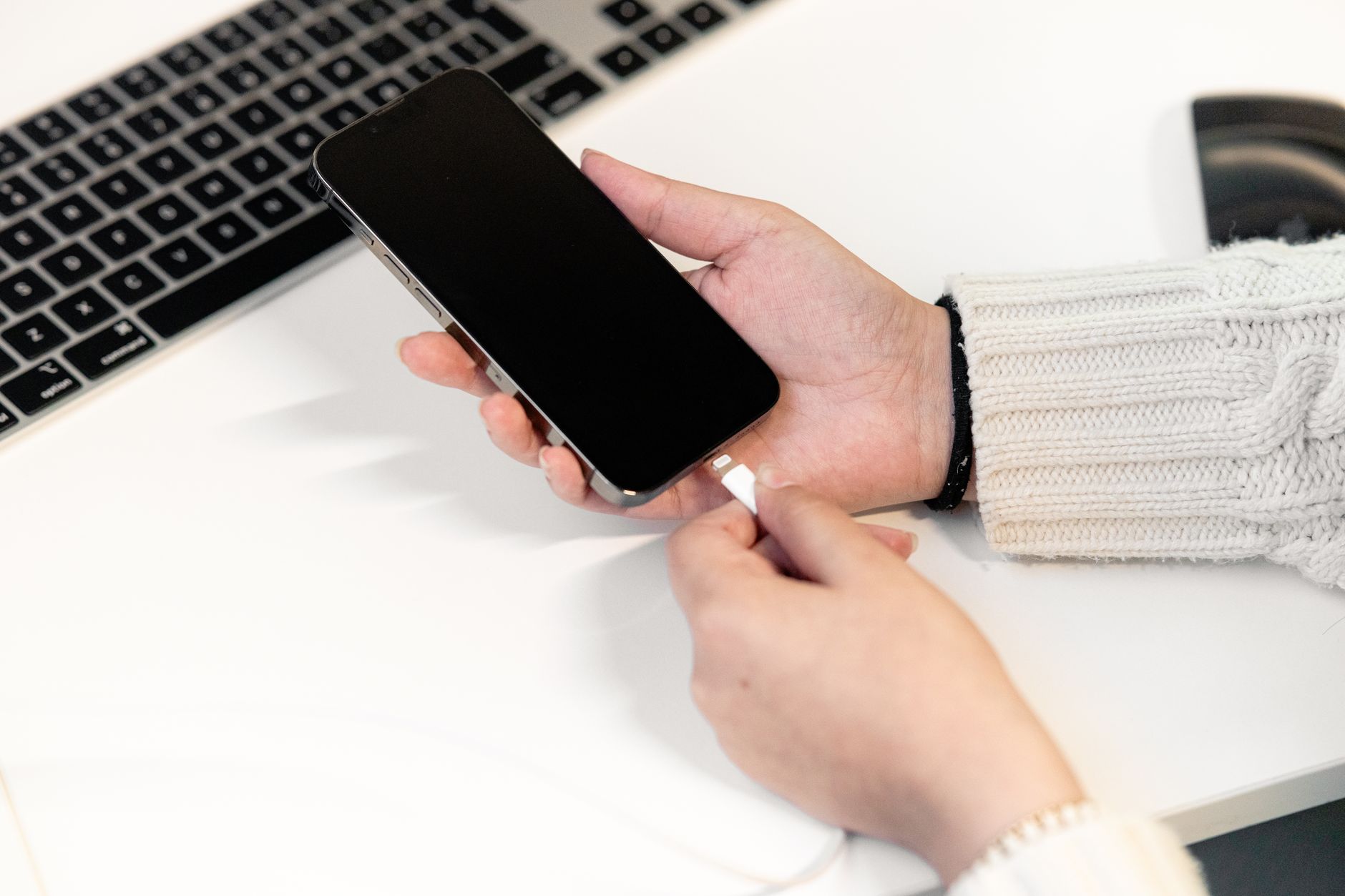
USB tethering uses the charging cable that came with your phone. Plug one end into the phone and the other into a USB port on your laptop. On iPhone, you may need to trust the computer. On Android, swipe down from the top, tap the USB notification, and choose USB tethering. Or go to Settings, then Network & internet, then Hotspot & tethering, and turn on USB tethering. Google’s Android tethering help lists the exact menu names.
The big advantage is reliability. The cable carries data directly, so there is no wireless interference. Speeds match your phone’s cellular connection. While tethered, your phone charges from the laptop. That is helpful during long work sessions. The downside is that you are physically tied to the computer. The cable must stay plugged in. If you need to move around, USB tethering is a hassle. For moving files between phone and computer, see our photo transfer guide.
Key strengths:
- ✅ Fast, reliable connection with no wireless interference
- ✅ Charges your phone while in use
- ✅ Very secure because a physical cable is required
- ✅ Works even if Bluetooth or Wi-Fi is broken
- ✅ Simple for laptops and desktops with a USB port
- ❌ Requires a cable, which can break or get lost
- ❌ You cannot move freely while connected
- ❌ Some older laptops may need drivers installed
Who it’s for: Choose USB tethering if you use a laptop at a desk and need dependable internet for video calls or large downloads.
3. Wi-Fi Hotspot (Personal Hotspot) , Best for multiple devices and high-speed needs
A Wi-Fi hotspot turns your phone into a small wireless router. On iPhone, open Settings, tap Personal Hotspot, and turn on Allow Others to Join. On Android, go to Settings, then Network & internet, then Hotspot & tethering, and turn on Wi-Fi hotspot. Apple’s Personal Hotspot page says you can connect over Wi-Fi, Bluetooth, or USB. Most people choose Wi-Fi because it is fastest.
Wi-Fi hotspot supports multiple devices at once. You can connect a laptop, a tablet, and even a smart TV. Speeds are the same as your phone’s data connection. But the battery drains fast. A phone acting as a hotspot can lose half its charge in a couple of hours. Plug it in if you plan to use it for long. Also set a strong password. Anyone nearby who sees your network can try to join. For safe browsing on shared connections, read our online banking safety guide.
Key strengths:
- ✅ Fastest tethering method, full cellular speed
- ✅ Connects multiple devices simultaneously
- ✅ Easy to turn on and off (one toggle on iPhone)
- ✅ Works with devices that do not support Bluetooth
- ✅ Range can reach 30 feet or more indoors
- ❌ Drains phone battery very quickly
- ❌ Generates heat, which can slow down the phone
- ❌ Other people nearby may see your hotspot name
Who it’s for: Choose Wi-Fi hotspot when you need to connect several devices or stream video, and you can keep the phone plugged in.
Frequently Asked Questions
Does Bluetooth tethering use my phone data?
Yes. Bluetooth tethering uses the same cellular data as any other tethering method. Check your carrier plan for tethering limits. Some plans charge extra or slow your speed after a certain amount.
Can I make phone calls while using Bluetooth tethering?
Yes. On most phones, you can make and receive calls while tethering. The data connection may pause briefly during a call, but it resumes after you hang up.
Is Bluetooth tethering secure?
It is reasonably secure if you pair your devices with a passcode and only tether to devices you own. Avoid pairing with unknown devices in public places.
Why is Bluetooth tethering slower than Wi-Fi hotspot?
Bluetooth was designed for short-range, low-power connections like audio. Its data transfer rate is much lower than Wi-Fi. For heavy tasks, use Wi-Fi or USB tethering.
Can I tether a tablet to my phone using Bluetooth?
Yes, as long as the tablet supports Bluetooth tethering. Most iPads and Android tablets do. If you need help setting up a tablet, see our tablet guide.
Does Bluetooth tethering work without a cellular signal?
No. Tethering shares your phone’s cellular data. If you have no signal or your data is turned off, tethering will not provide internet.
What Should You Remember?
- Bluetooth tethering is best for low-data tasks and long battery life, not video calls.
- USB tethering provides the most stable connection and charges your phone while in use.
- Wi-Fi hotspot offers the fastest speeds but drains the battery in a few hours.
- Setup steps differ: iPhone uses Personal Hotspot, Android uses Hotspot & tethering in Network settings.
- Data usage counts against your cellular plan, so check for tethering limits.
- Security requires a strong password for Wi-Fi hotspot and pairing passcodes for Bluetooth.
This article is for general informational purposes only and is not medical, financial, or professional advice. Statistics and product details change, so verify current figures with the cited source before acting. Some links may be affiliate links that support this site at no cost to you.