Kodi confuses a lot of people at first. It is not a streaming service like Netflix or Hulu. Kodi is free software that turns a device into a media player. You point it at movies, music, or photos you already own. Some people also use add-ons to stream legal content from the internet. The software itself comes empty. That surprise trips up many seniors who expect channels right away. Think of Kodi as a blank DVD player that needs a disc. Once you understand that, the rest is easier. I have tested Kodi on four common setups and will show you the easiest path.
Before we compare methods, know that Kodi is safe if you download it from the right place. The official website is kodi.tv. The software does not include Netflix, Disney Plus, or live TV channels. You can add local media from a USB drive or a network folder. Many beginners worry about legal trouble. Kodi itself is legal. Some third-party add-ons are not. Kodi’s own support wiki explains that the software is free and does not come with content. I stick to official add-ons and my own files. That is the safest approach for seniors.
You may already own a device that runs Kodi. Pew Research Center reported that 61% of adults 65 and older owned a smartphone in 2021. AARP research shows adults 50 and older are adopting streaming devices faster than many younger people. That means the hardware cost for Kodi can be zero. An old Windows laptop or an Android tablet works fine. You do not need a new smart TV. If you have an Android phone, read our Android phone setup guide before you begin. It helps to know your device first.
This guide compares four ways to use Kodi. I will cover the Amazon Fire TV Stick, a Windows PC, an Android phone or tablet, and the NVIDIA Shield TV. Each method uses different steps for installing Kodi. I also list pros and cons so you can decide what fits your comfort level. None of these require typing code. If you can use a remote or a mouse, you can do this. Take your time with each step. If you feel stuck, check the FAQ at the end or read our guide on using a tablet for more basics.
How Do the Top Options Compare?
| Method | Best For | Hardware Cost | Setup Difficulty | Kodi Source |
|---|---|---|---|---|
| Amazon Fire TV Stick | Overall beginners | $30 to $50 | Medium | kodi.tv APK via Downloader |
| Windows PC or Laptop | Existing computer owners | $0 if owned | Easy | Microsoft Store or kodi.tv |
| Android Phone or Tablet | Portable viewing | $0 if owned | Easy | Google Play Store |
| NVIDIA Shield TV | Premium 4K streaming | $150 to $200 | Easy | Google Play Store |
Hardware costs assume you already own a Windows PC or Android device. Kodi software is free. Difficulty is based on a beginner doing the setup alone. Prices vary by retailer and model.
1. Amazon Fire TV Stick , Best overall for beginners

The Amazon Fire TV Stick is the easiest way for most seniors to get Kodi on a television. It plugs into an HDMI port on your TV. The remote feels familiar, and the whole setup costs roughly $30 to $50. You do not need a computer or a phone. Many households already own one because it is popular for Netflix and Prime Video. Kodi runs on Fire TV because the stick uses a version of Android. You just have to allow one setting and install a helper app.
Here are the exact steps. From the Fire TV home screen, select Settings. Then choose My Fire TV. Scroll to Developer Options. Turn on Apps from Unknown Sources. Press the Home button on your remote. Use Search and type the word Downloader. Select the orange Downloader app from the results and install it. Open Downloader and allow it to access files. In the URL box, type kodi.tv/download. That is the only address you need. Select the Android option. Pick the ARMV7A 32 bit file. The file downloads and the installation screen appears. Select Install, then Open.
After Kodi is installed, you may not see it on the home screen right away. Press and hold the Home button on the remote. Select Apps. Find Kodi and move it to the front row. The first time Kodi opens, the text may look small. You can adjust font size inside Kodi or use your TV settings. If you use a phone or tablet, our guide on increasing text size can help with the same idea.
The downside is storage. The cheaper Fire TV Stick has only 8GB. Kodi itself uses about 100MB, but add-ons and thumbnails can grow. Also, Amazon’s interface has ads on the home screen. Some seniors find that distracting. Still, for the price and simplicity, this is my top recommendation for a TV.
Key strengths:
- ✅ Cheap hardware, usually $30 to $50.
- ✅ No computer required. Everything happens on the TV.
- ✅ Voice remote can open Kodi by saying Alexa, open Kodi.
- ✅ Official Kodi APK comes from kodi.tv, not a sketchy store.
- ❌ Limited storage on the base Fire TV Stick.
- ❌ Amazon home screen shows ads and promoted content.
- ❌ Must enable unknown sources, which can feel risky.
Who it’s for: Choose the Fire TV Stick if you want the cheapest, simplest way to put Kodi on a television without using a computer.
2. Windows PC or Laptop , Best if you already own a computer
If you already own a Windows laptop or desktop, Kodi is a free install and you need no new hardware. Windows 10 and Windows 11 both work. You can use Kodi on the computer screen. You can also connect a laptop to your TV with an HDMI cable. Microsoft’s own app store makes installation safe and easy. The official Kodi app is in the Microsoft Store. This method gives you the most flexibility for playing files from USB drives, CDs, or network folders.
Start by clicking the Start button. Type Microsoft Store in the search box and open it. In the Microsoft Store search bar, type Kodi. Look for the app named Kodi with the blue wave logo. Click Get or Install. Wait for the download to finish. Then click Open, or find Kodi in the Start menu. Kodi starts in full screen. To exit full screen, press the backslash key or use the windowed mode in settings. A mouse works well. Arrow keys also work.
To add your own videos, select Videos in the Kodi home menu. Click Files. Choose Add videos. Click Browse. Find your USB drive or folder where your movies are stored. Select OK a few times. The first time this feels confusing. Many seniors skip this step at first. You can practice later. If you need to move photos from your phone to your computer before adding them, read how to transfer photos phone to computer.
One downside is that Windows startup and updates can interrupt Kodi. A laptop also may go to sleep during a movie. Adjust your power settings to keep it awake. Another issue is typing file paths on a keyboard. If you are comfortable with a Windows PC, this method feels natural.
Key strengths:
- ✅ No extra hardware cost if you own a Windows PC.
- ✅ Microsoft Store installation is safe and simple.
- ✅ Easy to add USB drives and local folders.
- ✅ Large screen if you connect a laptop to a TV.
- ❌ Power settings and updates can interrupt playback.
- ❌ Using a mouse and keyboard from the couch is clunky.
- ❌ File folder navigation confuses many beginners.
Who it’s for: Choose a Windows PC if you already use one and want the most control over local files.
3. Android Phone or Tablet , Best portable option
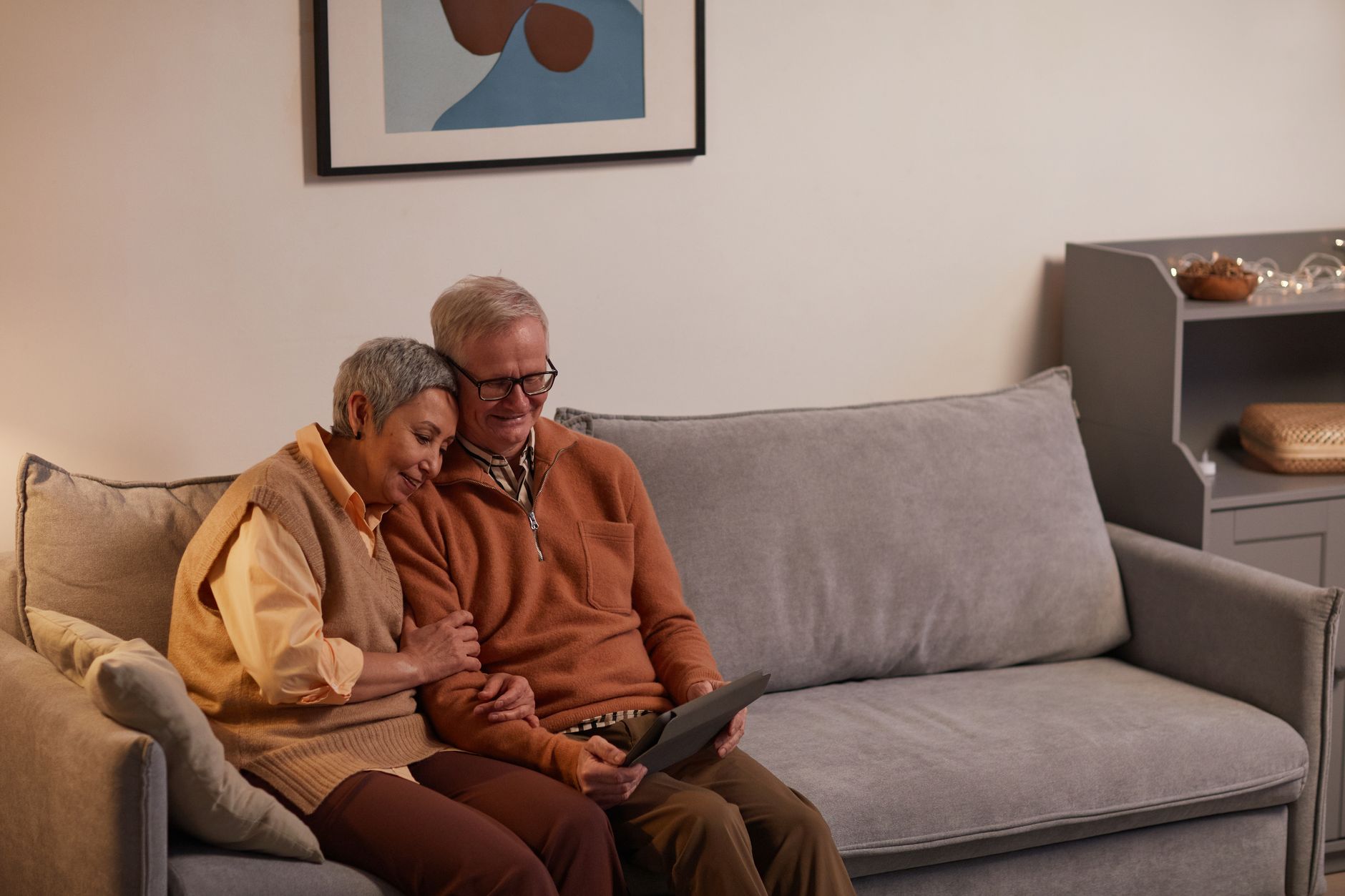
An Android phone or tablet can run Kodi from the Google Play Store. This is the least intimidating install because it works like any other app. A tablet is better than a phone for seniors because the screen is bigger. You can rest it on a stand and watch in the kitchen or bedroom. If you are new to tablets, read our tablet guide first.
Open the Google Play Store. Search for Kodi. Tap the app named Kodi. Tap Install. Wait a minute. Then tap Open. Kodi asks for permission to access media files. Tap Allow. Turn the device sideways for a wider view. The home screen has the same menus as other versions. Use your finger to tap Videos, Music, or Pictures. The touch screen can be easier than a remote for some seniors.
The limitation is screen size. A phone screen is small for movie watching. Text in Kodi can also be tiny. You can change the Kodi skin font size under Settings, Interface, Font. Or use Android’s own display settings to make text larger. A tablet solves most of this. You can cast from an Android phone to a TV, but Kodi does not make that simple. It is usually better to install Kodi directly on a TV device.
Another downside is battery drain. Kodi pushes the processor. Keep the charger nearby. Still, if you travel or want a private screen, this method works well.
Key strengths:
- ✅ Install from Google Play Store takes about two minutes.
- ✅ No new hardware if you already have an Android tablet.
- ✅ Touch screen controls are intuitive for many seniors.
- ✅ Portable for travel, bedroom, or kitchen.
- ❌ Phone screens are too small for comfortable movie watching.
- ❌ Battery drains quickly while using Kodi.
- ❌ Casting to a television is not straightforward.
Who it’s for: Choose an Android tablet if you want a portable Kodi player and already own an Android device.
4. NVIDIA Shield TV , Best premium Android TV box
The NVIDIA Shield TV is a premium streaming box that runs Android TV. It costs around $150 to $200. Kodi installs from the Google Play Store directly on the TV. This is the safest method because you do not need to enable unknown sources. The Shield remote has a built-in microphone. Press the Google Assistant button and say open Kodi once installed. If you use voice controls, see our voice assistants guide for similar skills.
To install Kodi, turn on the Shield TV. Press the Home button. Scroll to Apps. Open the Google Play Store. Search for Kodi. Select the app and click Install. After it finishes, open Kodi from the Apps row. You can also press the microphone on the remote and say, open Kodi. The Shield TV has two USB ports. You can plug in a USB drive with movies and photos. In Kodi, go to Videos, Files, Add videos, Browse, and pick the drive.
The Shield is more powerful than a Fire TV Stick. It plays 4K video smoothly and upscales lower quality. The interface is fast and has fewer ads. It also supports external hard drives, which helps if you have a large movie collection. The price is higher, but the Shield lasts for years. Many streaming enthusiasts keep theirs for five or more years.
One drawback is cost. Not every senior wants to spend $200 on a streaming box. If you only want to try Kodi, start with a Fire TV Stick first. The Shield is best when you know you will use Kodi often. Setup also requires a Google account. If you do not have one, you will need to create one. That is a minor hurdle for some beginners.
Key strengths:
- ✅ Kodi installs from the official Google Play Store.
- ✅ Powerful 4K playback and fast menus.
- ✅ USB ports for external hard drives.
- ✅ Voice remote with Google Assistant.
- ❌ Expensive compared to a Fire TV Stick.
- ❌ Requires a Google account.
- ❌ Overkill if you only watch occasional movies.
Who it’s for: Choose the NVIDIA Shield TV if you want a fast, long-lasting Kodi box and can spend $150 or more.
Frequently Asked Questions
Is Kodi legal?
Yes, Kodi is legal open-source software. It does not come with movies or TV shows. Some third-party add-ons can access pirated content, which is illegal. Stick with official add-ons and your own media files.
Is Kodi really free?
Yes, Kodi is free to download and use. There is no subscription. Some hardware like a Fire TV Stick or Shield TV costs money, but the software does not.
Can I install Kodi on my iPhone or iPad?
No, Kodi is not on the Apple App Store for iPhone or iPad without jailbreaking. Use Android, Windows, or a TV box instead. Read our iPhone setup guide if you need basic help with that device.
Do I need a VPN for Kodi?
Not for basic Kodi use with your own files. A VPN only matters if you use third-party add-ons that access questionable content. For official Kodi, skip the VPN.
Which Kodi version should I choose for Fire TV Stick?
Choose the ARMV7A 32-bit Android APK from kodi.tv/download. That works on most Fire TV Stick models. The 64-bit version only works on newer devices.
Why can't I see Kodi after installing on Fire TV?
After installing, Kodi may be hidden under Your Apps & Games. Press and hold the Home button, then move Kodi to the front row. Or ask Alexa to open Kodi.
What Should You Remember?
- Free software: Kodi costs nothing and runs on hardware you may already own.
- Fire TV Stick: The quickest path for seniors who want Kodi on a TV.
- Official source: Only download Kodi from kodi.tv or an official app store.
- No content included: Kodi plays your files. Add-ons from unknown sources can be risky.
- Start simple: Use the official Kodi skin first. You can change text size later.
- Legal caution: Kodi itself is legal. Some third-party add-ons are not.
- Take your time: Follow the exact steps for your device. No coding is required.
This article is for general informational purposes only and is not medical, financial, or professional advice. Statistics and product details change, so verify current figures with the cited source before acting. Some links may be affiliate links that support this site at no cost to you.